


Microsoft is bringing new functionality into Microsoft Teams at a rapid pace lately. One of the most recent introductions, breakout rooms, are intended to help larger groups facilitate more meaningful connections. Breakout rooms, which are now generally available in Microsoft Teams as of December 9th, allow companies to divide the meeting into various sub-groups for brainstorming and discussions.
The breakout room settings available from Microsoft Teams will allow the organiser to determine whether participants are allowed to return to the central meeting at any moment and go back into their breakout room when they choose too. This will allow participants to ask clarifying questions without disturbing discussions in some cases.
Organisers can also use the same settings to recreate breakout rooms in any meeting. The owner of the meeting room will also be able to rename, delete, and create rooms as and when they choose.
Exploring Microsoft Teams Breakout Rooms
After breakout rooms are available, meeting organisers will have the opportunity to join any of the breakout sessions, and quickly switch attendees in between sessions. Organisers can also send announcements to every breakout room, and recall participants into a central meeting.
Because these breakout rooms are a part of the Teams meeting experience, the innovative functionality of Microsoft Teams will also be available to users. You can still use Together mode, or access Microsoft Whiteboards for brainstorming. All of the security features from Microsoft will still be in place too.
Any files that users do create in the breakout rooms will also be available to share in the main meeting when people regroup, and they will appear in the meeting chat for use after the session.
Ready to Breakout with Microsoft Teams?
Currently, only meeting organisers will be able to start breakout rooms, and they can only do this from the desktop client. Participants, however, will be able to join the breakout rooms from mobile, web, or the desktop client. There is no option to use breakout room capabilities in Microsoft Teams Rooms yet. Additionally, participants logging in from multiple devices will join the same breakout room from all endpoints.
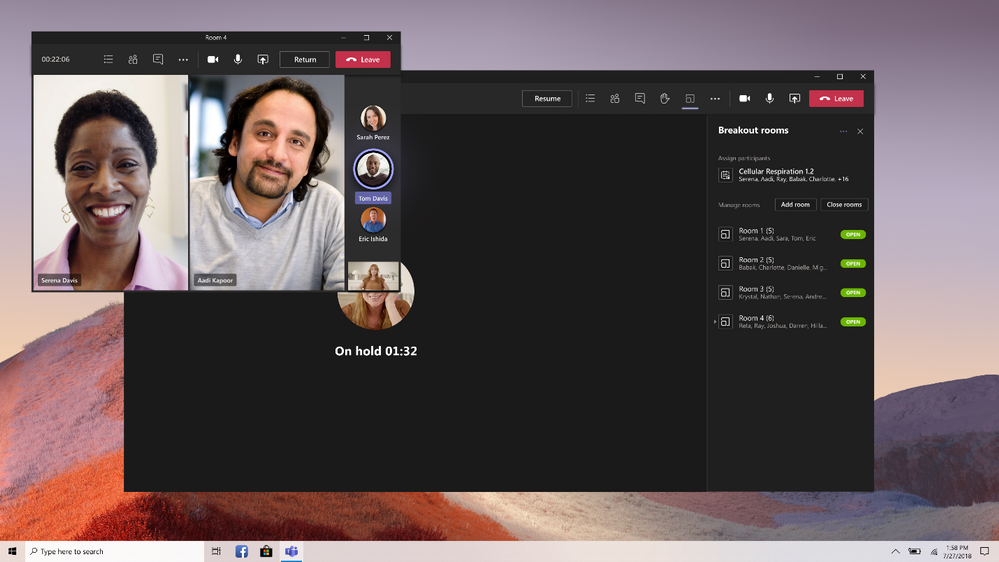
Switch Breakout Rooms
If you want to try using breakout rooms yourself, you can check it’s enabled in Teams > Settings > General and turn on new meeting experiences. You may also need to update your version of Teams. If you can’t find breakout rooms, ask your admin to check how frequently their tenants get updates.
Educators using Microsoft breakout rooms will be able to push students into rooms and recollect them into the main meeting without actions from students. Additionally, students can be assigned to breakout rooms, and use screen share or whiteboard if they have permission to do so in normal meetings.
from UC Today https://ift.tt/3oI6rIo


0 Comments